Can You Use an eSIM Without an eSIM-Compatible Phone?
Share
Yes. A removable eUICC adapter — a programmable chip on a nano-SIM card — lets you download and run eSIM profiles on a phone that has no eSIM hardware.
The honest caveat: it occupies your physical SIM slot. You aren't gaining a second line the way native eSIM does on a dual-SIM phone. On a single-slot phone you're swapping your home SIM out, not adding to it. If that's a dealbreaker, skip to the alternatives ↓.
Two hard requirements:
- A working SIM tray. No tray, no adapter. This rules out US iPhone 14/15/16, iPhone 17 in eSIM-only markets, iPhone Air, and US Pixel 10 models.
- A carrier-unlocked phone. An adapter cannot defeat a network lock. Check on iPhone at Settings → General → About → Carrier Lock; "No SIM Restrictions" means you're fine.
Why there's no app for this
The most common question we see is some version of "can't I just download something?" No — and the reason is worth 30 seconds.
An eSIM isn't a file. It's a credential stored in tamper-resistant silicon — an eUICC, a secure element soldered to the board. It holds cryptographic keys that authenticate you to a mobile network, and it's built so that neither you nor an app can extract or forge them. That security model is the whole point, and it's also why software can't conjure one into existence.
So: if your phone has no eUICC, no update or app will add one. What an adapter does is supply the missing chip in a removable form factor. The eUICC lives on the card; the phone just sees an ordinary SIM.
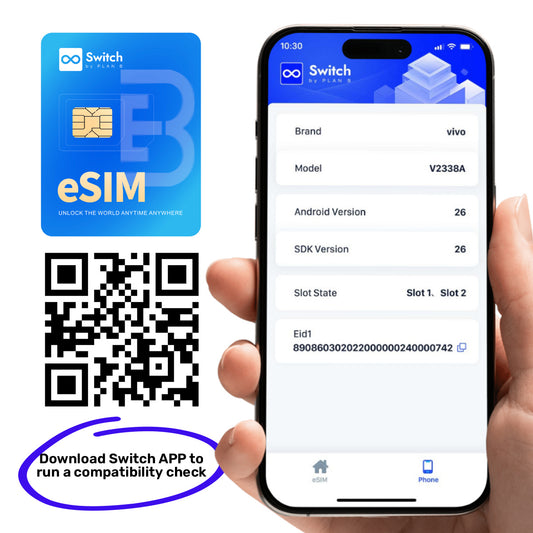
One genuine exception worth knowing: some phones do have the chip with the software switched off — region-locked variants, certain carrier-locked models. There, a system update or a carrier unlock can genuinely turn on native eSIM. Dial *#06#: if an EID appears, you have hardware and should try updating and unlocking before buying anything.
1. Adapter card
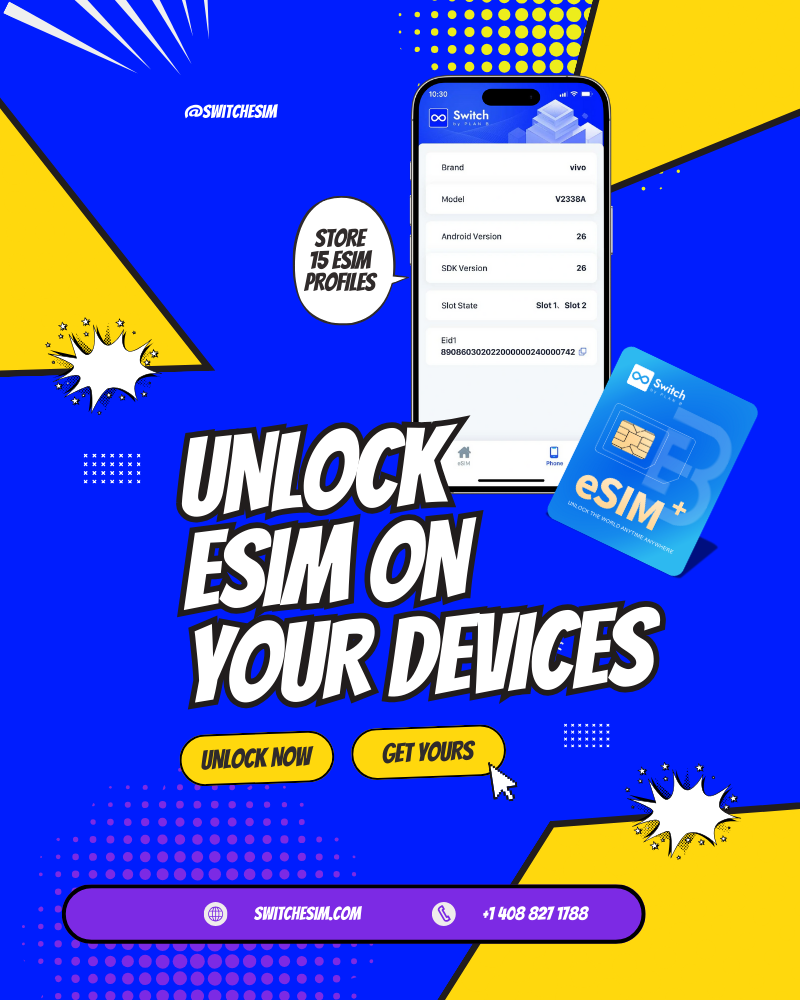
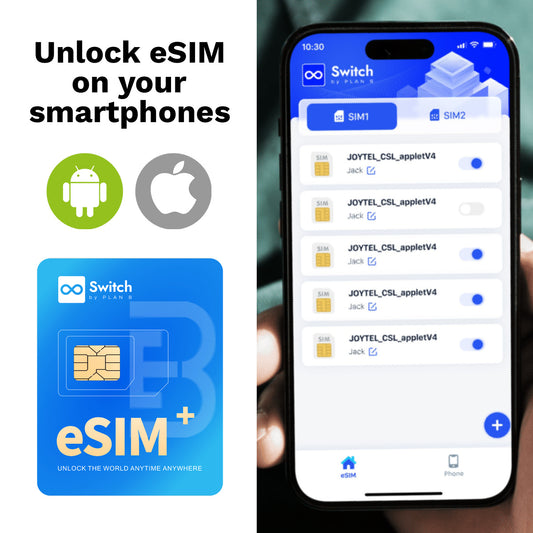
A programmable eUICC in nano-SIM format. Goes in your tray, holds up to 15 profiles, and you switch between them in software. Buy once, use indefinitely, across trips and across phones — the card moves between handsets.
The trade-off is the SIM slot, plus a setup process that's more involved than native eSIM. On iPhone, meaningfully more involved (see below).
One caveat on "up to 15": that's a maximum, not a guarantee. Profiles vary in size, so real capacity depends on what you load. Treat 15 as a ceiling.
2. Pocket Wi-Fi
Rent a portable router at your destination. Nothing touches your phone, and it connects 5–10 devices.
Costs roughly $3–15/day depending on market, plus a refundable deposit of $35–120 that ties up cash for the trip. Japan is the mature market (¥440–900/day); Europe is expensive and poorly served. You also carry it, charge it, and return it on time.
The economics flip on group size. Solo for a week: $56–105 versus maybe $10 for an eSIM. Family of four staying together: often the cheapest per head. Six or more: clearly cheapest.
3. Local physical SIM
Buy a SIM on arrival. Works in any phone with a tray, gives you a local number, and is frequently the best raw value — a Thai tourist SIM runs $5–10 for a week of generous data; Japan runs ¥2,000–4,000 a trip.
The costs are friction and privacy: airport counters, passport registration (mandatory in a growing number of countries), a new number every trip, and a fiddly swap that risks losing your home SIM. Japan is unusually hard for tourists because of identity-verification rules.
Which one wins
| Adapter card | Pocket Wi-Fi | Local SIM | |
|---|---|---|---|
| Cost | $14–32 once | $3–15/day + deposit | $8–43 per trip |
| Uses SIM slot | Yes | No | Yes |
| Devices covered | 1 | 5–10 | 1 |
| Setup effort | Moderate (high on iPhone) | Low | Low, but in person |
| Reusable next trip | Yes | No | No |
| Local number | Depends on plan | No | Usually yes |
| Wins when | You travel repeatedly and want one card for everything | Group of 3+, or you need a laptop online | One long trip, one country, cheapest local data |
Rough rule: more than two trips and the adapter is cheapest. One trip with a group, take the pocket Wi-Fi. One long stay in one country, buy locally.
Step by step: Android
Android is the straightforward path, because Android lets an app talk to the secure element in your SIM slot.
- Confirm your phone is unlocked, and back up nothing — you won't lose anything, but note your current APN settings if you've customised them.
- Power down. Remove your existing SIM. Insert the adapter card into slot 1.
- Power on and reboot if prompted. The card should appear as a normal SIM.
- Install the management app from Google Play and create an account.
- Add a profile — scan the QR code from your eSIM provider, or buy one in-app. Download takes a minute or two and needs Wi-Fi.
- Enable the profile in the app.
- Check APN settings if data doesn't come up. This is the single most common failure point, and your provider will publish the correct values.
One documented trap, and it's a nasty one. Vendors in this category — eSIM.me documents it explicitly — warn about an Android behaviour where disabling the SIM slot in your phone's SIM manager while a profile is still active can leave that profile stranded. The card survives; that individual profile may not. Always disable the profile in the app first, then the slot in Android settings, in that order. Worth its own callout box on the page.
Step by step: iPhone
Here's the structural difference, and it's the thing nobody explains clearly: iOS gives no third-party app access to the SIM slot's secure element. Apple simply doesn't expose that API. So the Android flow — insert card, open app, download profile — cannot exist on iPhone.
That leaves three routes, and which one applies depends on the exact product you buy:
- Buy a pre-loaded card. The profile is written before it ships; you insert it and go. Simplest, but you're committed to that destination plan.
- Provision on an Android phone, then move the card. Any Android device will do — a friend's, an old handset in a drawer. Load profiles there, then move the card to your iPhone permanently. Switch's own support documentation describes exactly this flow.
- Use a card reader. A separate USB or Bluetooth reader writes profiles to the card without needing an Android phone. Comparable vendors document a USB flow: card into reader, reader into PC, read the card, download the profile, enable it, reinsert into the iPhone.
⚠️ Editorial note — do not publish this section as-is. I can source the shape of these three routes but not the actual button-by-button steps for Switch's Bluetooth reader, and I'm not willing to guess at setup instructions. See my note at the end.
When not to bother
Genuinely: if you bought your phone new in 2022 or later, you almost certainly don't need any of this. Every iPhone since the XS, every Pixel since the 4, and most mid-range-and-up Samsung, Xiaomi, Motorola and OnePlus models have native eSIM. Native is free, better integrated, doesn't consume your SIM slot, and lets you run a home line and a travel line simultaneously.
Dial *#06# first. If an EID appears, buy a normal travel eSIM and stop reading.
Adapters are for a specific set of people: pre-2018 iPhones, China/Hong Kong-market phones where eSIM was deliberately omitted, region-locked Samsung A-series, budget Androids, and anyone who wants profiles that travel between devices. If you're not in one of those groups, you're solving a problem you don't have.
FAQ
Does the adapter give me dual SIM? Not on a single-slot phone — it replaces your SIM. On a dual-slot phone, keep your home SIM in slot 2 and you get both.
Can I move the card between phones? Yes. That's a real advantage over native eSIM, where profiles are usually bound to the device.
Will it work in any country? The card is network-agnostic; your plan determines coverage. Buy the profile for where you're going.
Does it work in a tablet, router or hotspot? Yes, anything with a nano-SIM slot. Often a better fit than a phone, since you're not giving up a slot you needed.
Can I use it for calls and texts? Depends entirely on the plan. Many travel eSIMs are data-only.
Learn more:
- Switch eSIM Adapter Max (Android & iOS) — product page
- Switch eSIM Adapter Max with Pre-loaded Destination Data Plan
- eSIM adapters + Bluetooth Card Reader — Switch eSIM
- Open Source Bluetooth eSIM Card Reader — Switch eSIM
- How to install Switch eSIM on iPhone/Android device? — Plan B help centre
- eSIM.me — card overview and Android SIM-slot caveat
- Physical eSIM Setup Guide for Android, iPhone & GL-iNet Router — EIOTCLUB
- Set up cellular service on iPhone — Apple Support
- If you can't set up an eSIM on your iPhone — Apple Support
- eSIM vs Local SIM vs Pocket WiFi cost comparison — TripJive
- Japan pocket wifi: rental guide and eSIM comparison — SimLocal
- Pocket WiFi vs eSIM for Vietnam travel — VietnamEsim
- How Much Does a Travel Hotspot Cost 2026? — Twise
- Pocket WiFi Thailand: costs, providers & eSIM alternative — Gigago
Learn more:
- Upgrade to eSIM
- eSIM adapters + Bluetooth Card Reader
– Switch eSIM - How to install Switch eSIM on iPhone/Android device?
- Set up eSIM on iPhone
- Open Source Bluetooth eSIM Card Reader
– Switch eSIM - Master eSIM Installation on iPhone
- iPhoneでeSIMを設定する
- Physical eSIM Setup Guide for Android, iPhone & GL-iNet Router
– EIOTCLUB - How to install and activate an eSIM on an iPhone
- Complete Step-by-Step Setup Guide
- iPhoneでeSIMを設定できない場合
- If you can't set up an eSIM on your iPhone – Apple Support (AU)
- If you can't set up an eSIM on your iPhone – Apple Support (UK)
- Prepare to use eSIMs with Apple devices – Apple Support (AU)
- Set up cellular service on iPhone – Apple Support (AU)
- Utilisation de la double SIM avec une carte eSIM – Assistance Apple (CA)
- Physical SIM and eSIM does not work toget…
- If you see Invalid SIM or No SIM on your iPhone or iPad – Apple Support (UK)
- No “Add ESIM” option on iPhone 12
- If you see Invalid SIM or No SIM on your iPhone or iPad – Apple Support (AU)
- Enable eSIM on Any Connectivity Devices with Keep On Roaming and Switc
– Switch eSIM - Switch eSIM by Plan B
- Enable eSIM on Any Connectivity Devices with eSIM Choice and Switch eS
– Switch eSIM - Enable eSIM on Any Connectivity Devices with Chat Mobility and Switch
– Switch eSIM - Enable eSIM on Any Connectivity Devices with United Global eSIM and Sw
– Switch eSIM - Enable eSIM on Any Connectivity Devices with KnowRoaming and Switch eS
– Switch eSIM - Enable eSIM on Any Connectivity Devices with Data Magic and Switch eSI
– Switch eSIM - Enable eSIM on Any Connectivity Devices with ConnectedYou and Switch e
– Switch eSIM - Enable eSIM on Any Connectivity Devices with eSIM2Fly and Switch eSIM
- Enable eSIM on Any Connectivity Devices with MTX Connect and Switch eS
– Switch eSIM - One Costs 5x More For The Same Speed
- How Much Does a Travel Hotspot Cost 2026?
- Best Option for Travel (2026)
- Is an eSIM Cheaper Than Roaming? Real Cost Comparison (2026)
- Which is Better for Your Trip?
- Pocket Wifi vs SIM vs eSIM in Japan
- eSIM vs. Pocket WiFi for 2026 Summer Vacations: Which Saves U.S. Travelers More Money?
- Pocket WiFi or eSIM for Your Family Trip to Japan? A 2026 Cost & Convenience Breakdown - Japan Wireless
- Japan pocket wifi: rental guide and eSIM comparison
- Costs, Providers & eSIM Alternative 2026
- Switch eSIM Adapter Max – Pre-Loaded Data for iOS & Android
- Switch eSIM Adapter Max (Android & IOS)
- Products
– Switch eSIM - eSIM adapters + Bluetooth Card Reader
– Switch eSIM - Open Source Bluetooth eSIM Card Reader
– Switch eSIM - Enable eSIM on Any Connectivity Devices with eSIM2Fly and Switch eSIM
- Enable eSIM on Any Connectivity Devices with Thumb Cellular and Switch
– Switch eSIM - Enable eSIM on Any Connectivity Devices with eSIMs.io and Switch eSIM
- Switch Card
– Switch eSIM - Enable eSIM on Any Connectivity Devices with eSIM On and Switch eSIM A