
How long does it take to set up Switch Pro for the first time?
Switch Pro first-time setup has no single duration that applies to every device: you need to confirm compatibility, load a profile through the Switch Android app, and verify network access. Carrier restrictions, device support and the eSIM provider’s activation requirements determine whether those steps finish without troubleshooting. Treat a working mobile-data connection—not an installed app—as the finish line.
- Switch Pro first time setup requires a compatible physical SIM slot and Android-based profile management.
- Switchesim eSIM adapter hardware does not remove carrier locks or change supported network bands.
- Choose Switch Pro for Android management; distinguish Switch Max iPhone use from Bluetooth reader provisioning.
- Complete setup by checking profile activation, the selected data line and actual mobile-data access.
How long does it take to set up Switch Pro for the first time?
The useful way to plan your first setup is by completion checks, not an unsupported minute estimate. A phone that accepts the card still needs a usable profile, the right mobile-network settings and access to a supported network.
For the standard Android-managed route, Switch Pro uses the Switch Android app for profile management. Confirm that your exact phone supports that route before arranging an activation session.
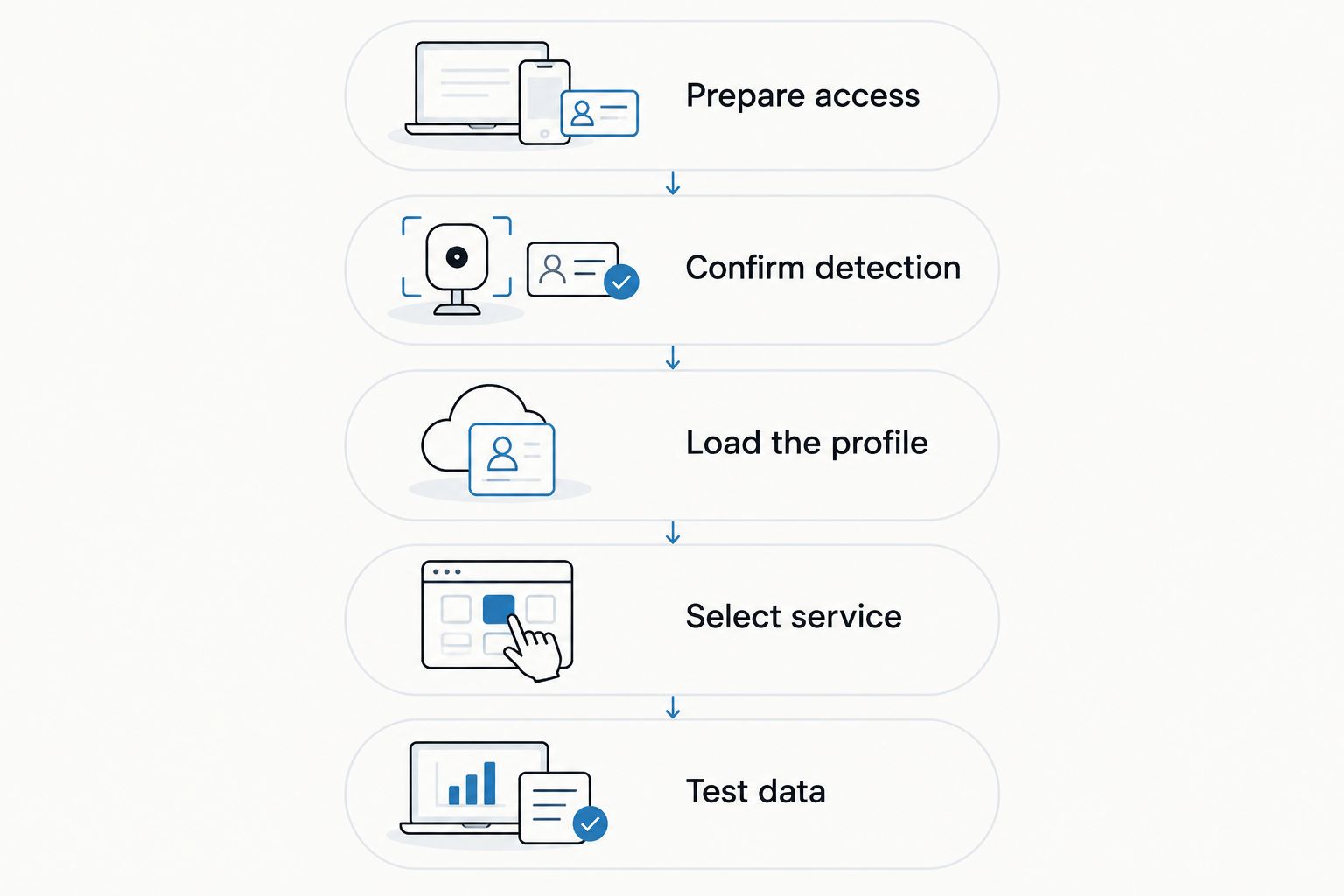
Use this sequence to separate preparation from activation:
- Check device fit. Confirm the exact model, regional variant, operating system and physical SIM-slot compatibility.
- Check carrier restrictions. Establish whether the phone is locked and whether the intended service is permitted.
- Prepare profile management. Follow the current Switch Android app instructions for your supported device.
- Load the provider’s profile. Use the activation information and installation method that the provider supports.
- Select the intended service. Check the active profile and the phone’s mobile-data selection.
- Test the connection. Verify that mobile data works without relying on Wi-Fi.
These are checkpoints, not guaranteed app-screen names. Follow the current instructions where the interface differs.
Why this matters
An eSIM adapter adds another component between profile provisioning and mobile service. You can successfully configure the card yet still have a carrier, coverage or data-settings problem.
For your 2026 setup, separate those jobs from the start. That prevents you from repeatedly reinstalling a profile when the unresolved issue is elsewhere.
Switchesim eSIM adapter hardware is best for buyers who need removable profile storage and can confirm a compatible physical SIM-slot setup. It is not a substitute for checking the phone or the service you intend to use.
Check device fit before starting the setup clock
A compatible physical SIM slot is required. A phone without that slot cannot accept the adapter, and the presence of a tray alone does not establish compatibility.
Check the exact model rather than the product-family name. Regional variants, operating-system versions and carrier restrictions belong in the compatibility check because similarly named phones do not necessarily have the same configuration.
Before your 2026 installation, record:
- Device identity: the full model and regional variant.
- Operating system: the installed version and the supported management route.
- SIM hardware: whether the device has the required compatible physical slot.
- Carrier-lock status: whether another provider’s service is permitted.
- Network fit: whether the device supports the intended network bands.
- Provider fit: whether the eSIM provider supports the intended activation method and device arrangement.
Keep those details available if you need support. A precise model and a description of the failed step are more useful than saying the adapter does not work.
Do not interpret a carrier lock as a profile-loading problem. The adapter does not remove the phone’s network restrictions or add radio bands that its hardware lacks.
Choose the correct management route
Switch Pro, Switch Max and the Bluetooth reader serve different roles. Android profile management, iPhone use and reader-based provisioning are not interchangeable descriptions of the same setup.
The following comparison reflects the product roles supplied by Switchesim for 2026. It does not establish compatibility with an individual phone.
| Option | Best for | Supported role | Benefit | Limitation to check |
|---|---|---|---|---|
| Switch Pro | Buyers using Android-based profile management | Manage profiles through the Switch Android app | An Android-managed adapter route | Requires a compatible device and physical SIM slot; do not assume iPhone management |
| Switch Max | Buyers planning use in a compatible iPhone | Use a configured Max card in a supported iPhone setup | Extends the adapter approach to compatible iPhones | Physical SIM-slot and device compatibility still apply; use does not establish an iOS management workflow |
| Bluetooth reader | Buyers who need provisioning without an Android phone | Load profiles through the reader-based route | Removes the Android-phone requirement for provisioning | Additional hardware and its own setup path; the destination device still needs a compatible slot |
Choose Switch Pro when Android-based management matches your actual workflow. Do not choose it on the assumption that instructions written for Switch Max or the reader will apply unchanged.
Pre-loaded destination-data cards are another supplied option. They change the starting point because a profile is already loaded, but they do not remove device-fit, service-activation or network checks.
Bulk and white-label supply are also offered. Those purchasing arrangements do not establish compatibility or replace a setup test on the intended device.
Follow a checkpoint-based first setup
Use the current product instructions for the exact installation actions. The sequence below tells you what to establish at each stage without assuming unverified menu names, automatic behaviour or timing.
Prepare access
Have the provider’s activation instructions accessible before changing the phone’s SIM arrangement. Keep access to the setup instructions and any connection required for profile provisioning.
Do not make your only working connection depend on the profile you have not yet installed. Preparation should leave you able to read instructions and contact support if activation stops.
Confirm detection
Install the adapter according to the device and product instructions. Then establish whether the supported management route can detect it.
If detection fails, return to the model, slot and operating-system checks. Repeatedly submitting provider activation details does not resolve a card that the management setup cannot access.
Load the profile
Use the Switch Android app for the standard Switch Pro management route. Follow the eSIM provider’s instructions for the activation information supplied with that service.
Do not assume that every provider allows the same installation method, repeat download or transfer procedure. Establish those conditions before deleting an existing installation or attempting another download.
Select service
After loading, confirm which profile you intend to use. Then check that the phone’s mobile-data settings point to the intended service.
Treat storage and service selection as separate checks. Seeing a profile in a management interface is not proof that the phone is using it for mobile data.
Test data
Temporarily disconnect Wi-Fi and try a mobile-data connection. Check the provider’s instructions for any required access-point or roaming settings.
A successful data test is the practical endpoint. Keep the working configuration documented so that a later profile change does not require reconstructing the entire first setup.
Why Switch Pro setup time varies
The setup duration depends on the checks and corrections your particular combination requires. These factors explain the work involved without turning an unmeasured process into a promised activation time.
- Device compatibility: the model, regional variant and operating system determine the supported path.
- Physical SIM-slot fit: the adapter needs a compatible slot in the destination device.
- Carrier restrictions: a locked phone can prevent use of the intended service.
- Provisioning route: Android management and Bluetooth reader provisioning require different preparation.
- Provider requirements: activation information, installation conditions and service settings come from the provider.
- Network access: supported bands and local network coverage affect whether the configured service connects.
For a 2026 purchase, verify these factors before comparing setup-speed claims. A fast demonstration on another device is not a compatibility check for yours.
What should you do if setup stops partway through?
Identify the last successful checkpoint before changing anything. “Card detected, profile not loaded” and “profile loaded, no mobile data” describe different problems and require different checks.
| Last successful checkpoint | Check next | Avoid doing first |
|---|---|---|
| Physical installation | Device support and card detection | Repeated provider activation attempts |
| Card detection | Provider installation instructions and activation information | Assuming the service is already active |
| Profile loading | Profile selection and the selected mobile-data line | Deleting the profile without checking reinstallation rules |
| Service selection | Provider settings, lock status and network fit | Treating every connection failure as an adapter fault |
| Mobile-data test | Whether the connection uses the intended service | Calling setup complete while still using Wi-Fi |
Keep the exact error wording if the app or provider displays one. Share activation credentials only through the appropriate support channel, not in a public troubleshooting post.
Change one setting at a time. Otherwise, you lose the ability to distinguish a successful correction from an unrelated change.
Does storing more profiles change first-time setup?
Profile capacity and first activation are different questions. Establish a working service before building a larger collection of profiles.
Check the capacity stated for the exact adapter you buy. Do not transfer a capacity claim from a bundle, another adapter or an article title to Switch Pro.
Also distinguish stored profiles from simultaneous connections. A storage specification does not establish how many services your phone can use at once; that requires a separate device-and-product compatibility check.
What privacy checks belong in the setup?
Separate the management tool’s requirements from the mobile provider’s requirements. An adapter, a provisioning interface and a mobile-data subscription do not have identical roles or account conditions.
Switchesim describes the Bluetooth reader as open source and requiring no app or account. That claim concerns the reader route; it does not establish that the Switch Android app has the same requirements or that a mobile provider requires no registration.
Before your 2026 setup, review the permissions and account conditions of the route you actually use. Keep activation codes and profile credentials private, and avoid including them in screenshots sent for general advice.
Do not equate open-source provisioning hardware with anonymous mobile service. Check the provider’s own identity and service requirements separately.
What should you check before buying?
Use this final checklist to keep the product choice tied to your device rather than a generic activation promise:
- Confirm the exact phone or destination-device model.
- Confirm a compatible physical SIM slot.
- Establish the phone’s carrier-lock status.
- Choose Android management, configured Max use or reader-based provisioning deliberately.
- Check the eSIM provider’s activation and reinstallation conditions.
- Verify the exact adapter’s profile capacity and operating-system support.
- Plan a mobile-data test before depending on the connection.
Resolve compatibility before buying extra hardware to troubleshoot compatibility. A reader changes how you provision profiles; it does not make an unsupported destination device supported.
FAQ
How many minutes should I allow for Switch Pro first-time setup?
Do not plan around a guaranteed minute count. Finish the compatibility check, Android-based profile loading and mobile-data test before treating Switch Pro as ready.
Can I set up Switch Pro using only an iPhone?
Switch Pro’s stated management route uses the Switch Android app. Distinguish that route from using a configured Switch Max card in a compatible iPhone or provisioning through the Bluetooth reader.
Does my phone need a physical SIM slot?
Yes, the adapter requires a compatible physical SIM slot. Compatibility also depends on the exact model, regional variant, operating system, carrier restrictions, network bands and eSIM provider.
Will Switch Pro remove my phone’s carrier lock?
No, Switch Pro does not remove a carrier lock. Confirm that your phone permits the intended provider’s service before activation.
Is setup complete when the profile appears in the app?
No, a visible profile is not proof of working mobile service. Confirm the intended profile and mobile-data line, then test the connection without Wi-Fi.
Do I need the Bluetooth reader for Android-managed setup?
The standard Switch Pro route uses the Switch Android app for profile management. The Bluetooth reader provides a separate provisioning route that does not require an Android phone.
Should I delete a profile if mobile data does not work?
Do not delete a profile before checking the provider’s reinstallation rules. First verify profile selection, mobile-data settings, carrier restrictions and the provider’s network instructions.
One last thing
Your most useful setup record is not the elapsed time. It is the combination that worked: device model, operating system, management route, provider and service settings.
Save that record without activation secrets. When you later change phones or profiles, it gives you a concrete starting point instead of another first-time troubleshooting session.