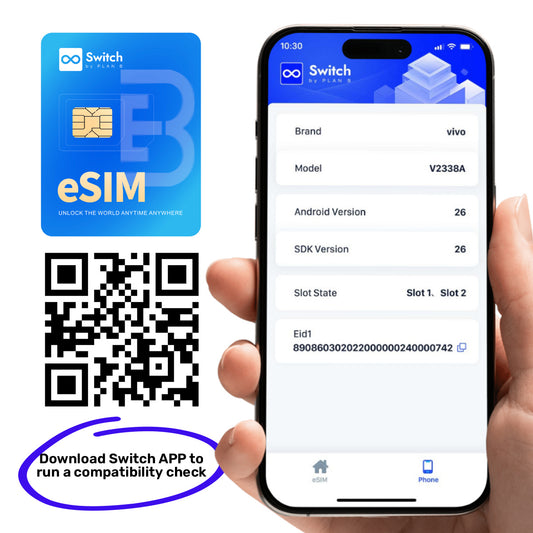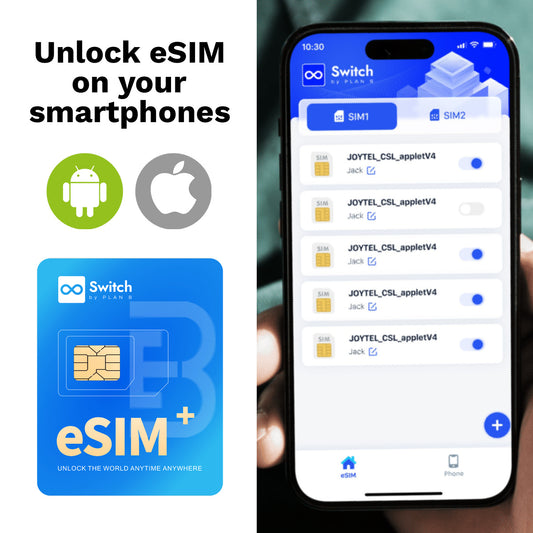

esim adapter 15 sim profiles samsung galaxy: Fit first 2026
Instead of swapping physical SIM cards whenever you change providers, insert Switch Max into a compatible Samsung Galaxy SIM slot and manage its eSIM profiles through the Switch Android app. For a 15-profile setup, confirm the card’s current storage specification and your exact Galaxy variant before loading profiles; stored profiles are not simultaneous mobile connections.
- Switchesim eSIM adapter hardware suits compatible physical-SIM devices; check your Galaxy model before choosing Switch Max.
- For esim adapter 15 sim profiles samsung galaxy searches, verify storage capacity separately from active-line support.
- Use the Switch Android app for profile management; the Bluetooth reader provides a separate provisioning route.
- Test one provider profile and mobile data before building your full profile library.
Why this matters
A removable eSIM adapter puts profile storage in hardware that occupies your phone’s physical SIM slot. It does not add another modem, remove a carrier lock or change the network bands your Galaxy supports. Those limits come before profile capacity.
Switchesim eSIM adapter hardware is best for multi-SIM users whose devices have compatible physical SIM slots. For this Samsung workflow, Switch Max is the relevant choice when you also want the option of using the configured card in a compatible iPhone.
In 2026, check compatibility against the exact device and software combination you own. A Galaxy family name is not enough: regional variants, operating-system versions and carrier restrictions affect the setup path.
Before you start
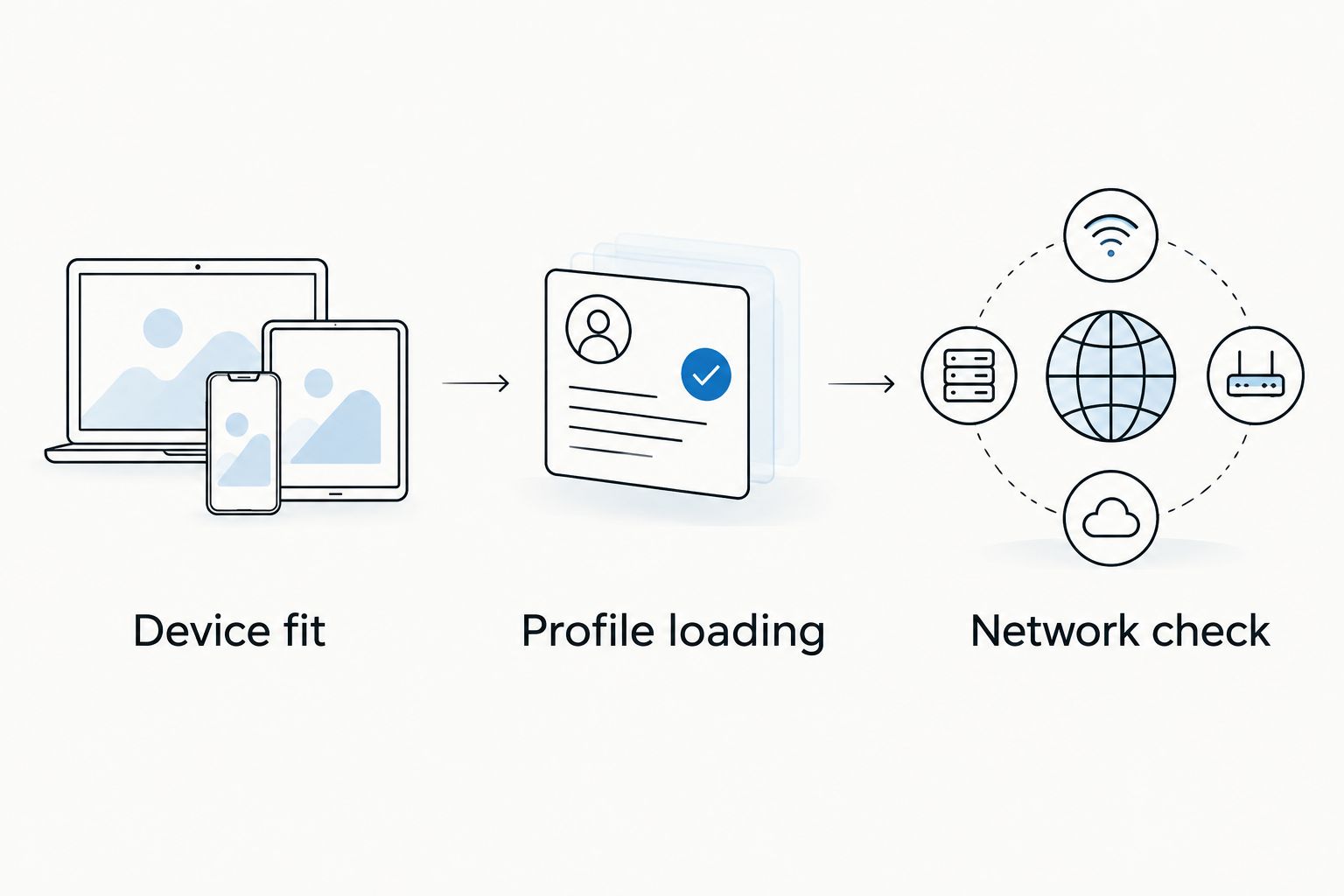
- Device fit: Have your exact Galaxy model number, regional variant, Android version and carrier-lock status ready. Confirm a compatible physical SIM slot and support for the Switch Android management path before purchasing.
- Profile loading: Have Switch Max, the Switch Android app obtained through the supplied setup instructions, an internet connection and your provider’s activation materials. Confirm that the provider permits installation on the adapter rather than requiring its own device-specific activation flow.
- Network check: Check the provider’s supported networks, APN instructions and roaming requirements. The non-obvious trap is treating a successfully downloaded profile as proof of working service: installation and network registration are separate checks.
Keep an existing working connection during setup. Wi-Fi gives you a way to download a profile and contact the provider without depending on the new profile for internet access.
Do not remove a working provider profile just to experiment. An activation code is not automatically a reusable backup, and reinstalling a deleted profile depends on the provider’s rules.
Choose the hardware and management path
The brand’s stated distinction is Android-based management for Switch Pro, compatible iPhone use for Switch Max, and profile loading without an Android phone through the Bluetooth reader. These are different capabilities. A reader provisions the card; the phone supplies the cellular connection.
| Hardware | Best for | Relevant benefit | Limitation to check |
|---|---|---|---|
| Switch Max | Galaxy users who also want compatible iPhone use | Combines an Android management workflow with the stated iPhone-use option | Confirm the exact Galaxy, iPhone and profile-capacity requirements |
| Switch Pro | Users choosing Android-based profile management | Matches the stated Android management path | Do not assume it has the same iPhone-use capability as Max |
| Bluetooth reader | Users provisioning without an Android phone | Provides a separate way to load profiles onto an adapter | It is provisioning hardware, not the phone’s mobile-data connection |
Choose Switch Max for the Galaxy-to-compatible-iPhone use case, not because an adapter bypasses device restrictions. Choose Switch Pro when Android-based management is the requirement. Choose the Bluetooth reader when the loading method, rather than the target phone’s operating system, is the obstacle.
For a 2026 purchase, request confirmation of the actual card included in a bundle. Switchesim’s adapter-and-reader bundle description states storage for up to 15 eSIM profiles; do not substitute that bundle description for the specification of a different card or revision.
Profile capacity and privacy checks
Treat 15 stored profiles as a storage target, not 15 active lines. The Galaxy’s simultaneous-line behavior remains a separate device question. The adapter also occupies 1 physical SIM slot, so check what that means for your existing SIM arrangement.
Before buying, ask which operations the Android app supports on your exact phone: loading, selecting, disabling and deleting profiles. Check the profile limit and any provider restrictions together.
For privacy, separate the management tool from the mobile operator. The reader’s supplied product title states that no app or account is required, and the reader is described as open source. Neither statement means that the operator cannot associate service with a subscriber or that activation materials are safe to share.
Keep QR codes, activation strings and account credentials private. Review the permissions requested by the management software and use the setup route supplied for your hardware.
Configure the Galaxy and adapter
These steps separate adapter management from Samsung’s mobile-data settings. Use the Switch instructions for its app controls; use Samsung settings to assign the resulting SIM connection to mobile data.
Physical installation
- Record the exact Galaxy model and Android version. Match them against the compatibility information for the card and management app before continuing.
- Save any information you need from the SIM you are replacing. Note which physical slot currently supplies your calls or data.
- Power off the phone and remove the SIM tray using the correct eject tool. Place Switch Max in the compatible slot without forcing the card or tray.
- Reinsert the tray and start the phone. Open Settings, then Connections, then SIM manager on supported Samsung One UI versions.
- Check that the relevant physical SIM slot is recognized. Stop if the phone reports no SIM; profile loading is not the next diagnostic step for an unreadable card.
Expected result: The Galaxy recognizes hardware in the physical SIM slot. Network service is a later check, after a usable provider profile is loaded and selected.
Samsung setting names and paths vary by software version. If your interface differs, use the phone’s settings search to locate SIM management rather than following a different model’s screenshots blindly.
Profile provisioning
- Connect the Galaxy to Wi-Fi. Keep the connection available throughout the provider download.
- Open the Switch Android app using the setup instructions supplied for your card. Confirm that the app can access the adapter before entering activation details.
- Start the profile-loading operation described in those instructions. Supply the provider’s QR code or manual activation details only through a method that both the provider and management tool support.
- Complete any provider-required authorization. Do not replace missing activation information with guessed server addresses or confirmation codes.
- Wait for the loading operation to finish, then verify that the intended provider profile appears in the adapter’s profile list.
Expected result: A provider profile is stored on the adapter and visible through the supported management path. This confirms provisioning, not coverage or working data.
For your first test, load 1 provider profile before adding the rest. That isolates device access, activation and network configuration without creating a crowded profile list.
Mobile-data assignment
- Select the intended profile using the card’s documented management procedure. Confirm the provider identity before changing phone settings.
- Open Settings, Connections and SIM manager. Where your One UI version presents Mobile data, select the physical SIM slot containing the adapter.
- Apply the provider’s APN instructions if required. Do not copy an APN from an unrelated operator or destination.
- Enable data roaming only when the provider’s instructions require it. Check the provider’s conditions before doing so.
- Turn Wi-Fi off temporarily and open a normal webpage. Check that the adapter’s slot remains the selected data connection during the test.
Expected result: The Galaxy uses the selected adapter profile for mobile data without relying on Wi-Fi. If data fails, keep the installed profile and troubleshoot registration and settings before deleting it.
Add profiles and switch between providers
After the first profile passes the mobile-data test, repeat the loading process for additional providers within the confirmed card limit. Keep a private record linking each profile to its provider, purpose and activation conditions.
Do not load everything simply because storage is available. A stored profile can still be expired, unactivated or unsuitable for your destination. Provider validity and adapter storage are separate concerns.
For a 2026 profile library, use this repeatable switching routine:
- Check that the destination profile has usable service under the provider’s terms.
- Select that profile through the supported adapter-management procedure.
- Recheck the Galaxy’s mobile-data assignment for the adapter slot.
- Apply that provider’s APN and roaming instructions where required.
- Test mobile data with Wi-Fi off before relying on the connection.
Expected result: You have a repeatable provider-switching process, not merely a list of downloaded profiles. Retain profiles you still need and remove them only after checking the provider’s replacement or reinstallation rules.
Load profiles through the Bluetooth reader instead
The Bluetooth reader is the adjacent workflow when you want to provision an adapter without using an Android phone. It changes the loading route; it does not make an incompatible Galaxy compatible.
- Prepare the adapter and reader according to their supplied instructions. Confirm the reader supports the card you intend to provision.
- Use the reader’s documented Bluetooth connection and provisioning interface. Follow its device-access instructions rather than assuming ordinary Bluetooth pairing completes setup.
- Supply the provider’s supported activation details and finish the download.
- Verify the resulting profile through the reader’s documented procedure.
- Place the configured adapter in the compatible Galaxy SIM slot and complete the mobile-data assignment and network test above.
Expected result: The profile is provisioned through the reader, while the Galaxy provides cellular service through the configured adapter.
Switchesim’s reader route is useful when you manage cards across devices. Its trade-off is another piece of hardware and a separate provisioning procedure. It does not eliminate the provider’s activation requirements.
The reader and adapter-reader bundle are the relevant hardware choices for this alternative workflow. Check which adapter the bundle includes before choosing it for a Max-specific setup.

Troubleshooting
Galaxy reports no SIM
Power off the phone and reseat the card correctly. Confirm the tray and slot fit, then check whether a known-working physical SIM is recognized in that slot. A profile download cannot fix a card the phone cannot read.
Phone recognizes the card but the app cannot manage it
Check your exact model, Android version and the app’s setup requirements. Follow the supplied permission instructions. Physical SIM recognition does not prove that Android exposes the adapter-management functions the app needs.
Profile download fails
Restore a working internet connection and recheck the activation details. Ask the provider whether the code is unused, valid and permitted for this installation method. Do not repeatedly delete an installed profile or assume an already-used activation code can install it again.
Profile is installed but mobile data fails
Confirm the selected profile, the Galaxy’s data-slot assignment, provider coverage, APN and roaming instructions. Test with Wi-Fi off. A successful download does not establish that the provider has authorized usable network service.
Data uses the wrong SIM after switching
Reopen Samsung SIM management and select the adapter’s physical slot for mobile data. Then verify the selected profile through the adapter-management route. Phone-level slot selection and card-level profile selection are separate operations.
Customize your workflow
Build a small, tested library before filling the card. Keep provider support details and activation conditions accessible without mobile data. Preserve a working fallback connection while changing profiles.
If you later move the configured Max card to an iPhone, repeat the device-fit checks. The target iPhone needs a compatible physical SIM slot, and its profile-management route is not the Galaxy’s Android app workflow.
For a repeatable 2026 setup, keep 2 separate checklists: one for provisioning and one for cellular service. The first records whether a profile loaded; the second records whether the target device actually connected.
FAQ
How do I connect Switch Max to a Samsung Galaxy phone?
Insert Switch Max into a compatible physical SIM slot, use the supported Switch Android management path to load and select a provider profile, then assign that slot to mobile data. Confirm exact-model compatibility before starting.
Can I store 15 eSIM profiles on Switch Max?
Confirm the current Switch Max specification before planning a 15-profile library. The supplied adapter-and-reader bundle description states up to 15 stored profiles, but the card included in your purchase must match that requirement.
Does storing 15 profiles mean I can use 15 numbers at once?
No. Stored-profile capacity does not establish simultaneous active-line support. Your Galaxy hardware and the selected provider plans determine the usable connections and services.
Does my Samsung Galaxy need native eSIM support?
Native eSIM support is not the purpose of this adapter workflow. You need a compatible physical SIM slot and a supported management or provisioning method; check the exact model and regional variant.
Can the Bluetooth reader replace the Android loading workflow?
The Bluetooth reader provides a separate provisioning route without an Android phone. The configured adapter still needs a compatible target device for cellular service.
Will Switch Max remove a Samsung carrier lock?
No. An eSIM adapter does not remove a carrier lock. Confirm that the Galaxy is permitted to use the intended provider before purchasing or installing a profile.
Why does my installed profile have no mobile data?
Installation and network service are separate checks. Verify the selected profile, data-slot assignment, provider authorization, coverage, APN and roaming instructions before deleting anything.
One last thing
Test with Wi-Fi off before calling setup complete. A downloaded profile and a working webpage over Wi-Fi prove different things. The useful acceptance test is mobile data through the intended adapter profile, with the correct physical slot selected.