How to Run a Local Number and a Travel Data Plan Simultaneously
Share
Short answer: keep your home line enabled with its data roaming off, and put a data-only travel eSIM on your second line as the default for data. Your home number stays registered on the local network, so calls and 2FA texts still arrive, while all data goes over the cheap travel plan. Then turn off "Allow Cellular Data Switching" (iPhone) — leaving it on is the single most common cause of surprise roaming bills, because your phone silently falls back to your home line's data the moment the travel eSIM's signal dips.
Two things that trip people up. A data-only travel eSIM has no phone number — it cannot receive SMS, so it can't verify WhatsApp or receive a bank code. And you need a phone that can run two lines at once; storing two eSIMs is not the same as having two enabled.
Disclosure: Switch eSIM sells removable eUICC adapter cards. For the setup described above, most readers do not need one — your phone's built-in eSIM already does the job. The narrow case where our card helps is spelled out below.
The one distinction that decides whether any of this works
Stored ≠ enabled. Your phone can hold several eSIM profiles in memory while only one is active. To run a home number and a travel plan simultaneously you need two enabled lines.
Apple's documentation is precise about which iPhones do what:
| Setup | Supported on |
|---|---|
| One physical SIM + one eSIM | iPhone XR, XS, SE (2nd gen) and later |
| Two active eSIMs | iPhone 13 and later; iPhone SE (3rd gen); all models with no SIM tray |
On Android it's messier, and this is where most guides get it wrong. Running two eSIM profiles at once requires MEP (Multiple Enabled Profiles), introduced in GSMA SGP.22 v3.0 (published October 2022) and supported in AOSP from Android 13. Per AOSP: on Android 12 and lower, "the eSIM slot only supports a single enabled profile at one time. This means the device can't support DSDS."
MEP works by giving a single eUICC multiple ports, each able to hold one enabled profile, each bound to a modem baseband. But AOSP is explicit that this isn't a software switch — manufacturers "must work with SoC vendors, and eSIM chipset vendors to integrate this feature." So MEP requires the eUICC, the modem, the OS and the OEM to have done the work. Availability is patchy and vendor claims conflict.
Practical upshot: physical SIM + eSIM is the reliable dual-line configuration on Android. Treat dual-eSIM as a bonus you verify on your specific model, not something you plan a trip around.
The five configurations
| # | Configuration | Home number: calls & SMS | Travel data | SMS 2FA to home number | WhatsApp keeps home number | iPhone |
|---|---|---|---|---|---|---|
| 1 | Native eSIM (travel) + physical SIM (home) | ✅ | ✅ | ✅ | ✅ | ✅ XR/XS+ |
| 2 | Two native eSIMs (home + travel) | ✅ | ✅ | ✅ | ✅ | ✅ 13+ |
| 3 | Adapter card in slot (travel) + native eSIM (home) | ✅ | ✅ | ✅ | ✅ | ❌ Android only |
| 4 | Dual physical slots: home SIM + adapter card | ✅ | ✅ | ✅ | ✅ | ❌ |
| 5 | Two devices (phone keeps home SIM; second device runs travel data) | ✅ | ✅ | ✅ | ✅ | ✅ |
Configuration 1 is the answer for most people. It works on essentially every eSIM phone sold since 2018, needs no extra hardware, and keeps your home SIM physically in the phone where you can see it.
Configuration 2 is for phones with no SIM tray, or anyone who's already moved their home line to eSIM. Same functional result, more fragile — if you factory-reset or lose the phone, both lines are software.
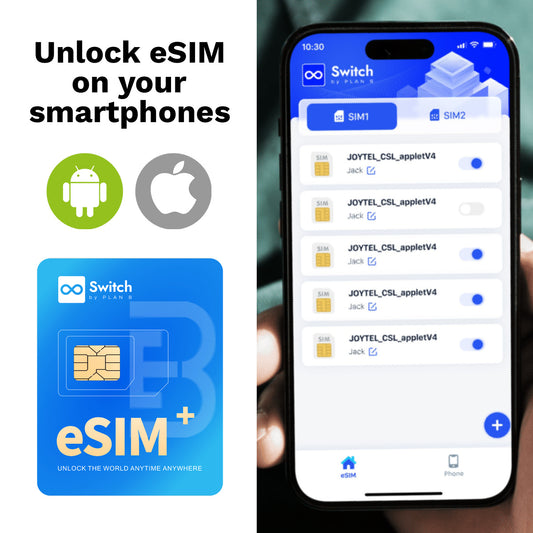
Configuration 3 is the only one where an adapter card earns its place. The card sits in the physical slot carrying your travel profiles; your home number lives on the phone's built-in eSIM. This is worth doing if your Android phone has no native eSIM but you want to use eSIM travel plans — or if you want one card holding many destination profiles that you move between devices. It requires converting your home line to eSIM first (ask your carrier; usually free, sometimes needs a store visit), and it's Android-only because profile management needs an app with OMAPI access. If your phone already has a working native eSIM, skip this — Configuration 1 does the same job with less to go wrong.
Configuration 4 needs a true dual-nano-SIM phone. Common in China, Hong Kong and Macao; uncommon elsewhere. Check your model, don't assume.
Configuration 5 is the underrated one, and it has a capability the others don't. Keep your home SIM in your normal phone with the radio on and data off. Put the travel plan in a second phone or hotspot, and connect the first phone to its Wi-Fi. Because your primary phone now has Wi-Fi, Wi-Fi Calling can carry calls and texts on your home number without needing to register on a foreign network at all — which matters if your carrier charges for roaming registration, or if local networks have shut down the older bands your phone needs. You cannot do this on a single phone, since a phone can't join its own hotspot. Enable Wi-Fi Calling before you leave; most carriers require it to be provisioned domestically.
Step-by-step: Configuration 1
Before you leave home
- Confirm the phone is carrier-unlocked. Apple: to use two carriers, "your carrier must unlock your iPhone, or both plans must be from the same carrier."
- Ask your carrier two questions: is voice/SMS roaming permitted on my account in my destination, and what do you charge me to receive an SMS while roaming? Don't skip the second one. Vendor blogs claim inbound SMS is free worldwide; that is not something you should bet a bank code on without your own carrier confirming it.
- Install the travel eSIM while still on Wi-Fi. Installation needs internet. Doing this at the destination airport with no connectivity is the classic failure. Note that many travel eSIM QR codes are single-use — once installed, rescanning may not work, so don't delete a profile to "start fresh" while troubleshooting.
- Label both lines — "Home" and "Travel Data." You'll be making per-line decisions in a hurry.
- Move critical 2FA off SMS. See the section below. This is the step that saves the trip.
On arrival — iPhone
Settings → Cellular
| Setting | Home line | Travel line |
|---|---|---|
| Turn On This Line | On | On |
| Data Roaming | Off | On |
| Default line for Calls & Messages | Home | — |
| Cellular Data | — | Travel |
| Allow Cellular Data Switching | Off |
Why Data Roaming must be ON for the travel line: even a data-only travel plan usually connects via a local partner network, which your phone classifies as roaming. It isn't billed as roaming on that plan — but with the toggle off, you get no data.
Why "Allow Cellular Data Switching" must be OFF: left on, the phone falls back to your home line's data when the travel signal weakens. That's the mechanism behind most "but I set it up correctly" roaming bills.
On arrival — Android
Settings → Network & internet → SIMs (wording varies by OEM)
- Mobile data → Travel
- Calls → Home (or "Ask every time")
- SMS → Home
- Home line: data roaming off, line itself enabled
- Travel line: data roaming on
Verify before you rely on it: load a map (data on travel line), send yourself a test SMS from another number (arrives on home line), and check your carrier app or usage counter to confirm the home line has recorded zero data.
SMS 2FA abroad: what actually works, and what can still fail
The mechanism is genuinely favourable. Your home line stays registered on a local network for voice and SMS while its data stays off, so codes route to your number as normal. Your bank sees no difference — same number, same delivery path.
But five things can still break it, and you control only some of them:
- The line is disabled, not just data-disabled. Turning off the line stops codes. Turning off data roaming doesn't.
- Your carrier requires roaming permission on the account. Some don't register the line abroad until an international add-on is active.
- Your carrier bills inbound SMS while roaming. Verify. Don't assume.
- DSDS means one line goes quiet during a call. Apple: "When Carrier 1 is in use, the other line will show No Service." A code sent while you're mid-call on the travel line may be delayed.
- Network registration can simply fail — an older phone, or a destination that has retired the bands it needs.
So do this before you leave: move every account you'd panic about off SMS 2FA and onto an authenticator app (TOTP). Banking, email, cloud storage, work SSO. TOTP codes generate offline on the device — no network, no SMS, no carrier, no roaming. This is the one piece of advice in this article that removes the failure mode instead of managing it. Keep SMS as your fallback, not your primary.
Also worth knowing: Apple's dual-SIM documentation notes that when data roaming is on for the data line, Visual Voicemail and MMS are disabled on the voice-only line. Voicemail still works; the visual transcription and MMS don't. (This appears on Apple's two-nano-SIM page — confirm the scope for eSIM configurations before treating it as universal.)
WhatsApp: the distinction that causes most of the confusion
Once your account is verified, WhatsApp needs only internet. It's tied to your number, not your SIM. Install a travel eSIM, get data, and WhatsApp carries on with your home number and full chat history.
The rule that prevents the disaster: never tap "Change Number" just because you installed a travel eSIM. You don't need to, and doing so migrates your account to a number you'll stop using in two weeks.
Verifying a new account is a different problem entirely. WhatsApp sends a code by SMS or voice call. A data-only travel eSIM has no phone number — no MSISDN — so it cannot receive either. If you need to verify a new WhatsApp account or set up WhatsApp Business, you need:
- a voice-and-data eSIM with a real cellular number (look for "voice and data" in the plan description, not "data only"), or
- a dedicated virtual number — though many banks and platforms refuse to deliver codes to VoIP numbers.
This also answers "two numbers, one phone." If what you want is a genuine second number for calls and texts, a data-only travel plan won't give you one, however many gigabytes it includes. That's a different product.
Troubleshooting
| Symptom | Likely cause | Fix |
|---|---|---|
| No data on travel eSIM | Data Roaming off on that line, or wrong default data line | Data Roaming on for travel line; set it as Cellular Data line |
| No data, roaming already on | APN not set | Enter the provider's APN manually |
| Unexpected roaming charge | "Allow Cellular Data Switching" left on | Turn off; check home line's data counter |
| 2FA code never arrives | Line disabled, roaming not permitted on account, or registration failed | Confirm line enabled; check for signal bars on home line; call carrier |
| Codes arrive late | DSDS — other line unreachable during a call | Expected behaviour; end the call and wait |
| Second line shows "No Service" | Normal during a call on the other line | Not a fault |
| WhatsApp asks to re-verify | "Change Number" tapped, or reinstalled without backup | Re-verify on home number via SMS or "Call me" |
| Can't install travel eSIM | Carrier-locked phone, or single-use QR already consumed | Unlock; contact provider for reissue — don't delete the profile |
| Travel eSIM installed, no service | Plan validity not started, or destination mismatch | Check the plan's activation rules — install, enable, and validity start can be separate events |
| Bank freezes account | Foreign IP, not a SIM issue | Notify the bank pre-travel |
Limitations
- The cost of receiving SMS while roaming is carrier-specific and I could not verify the "always free" claim. Ask your carrier.
- Android dual-eSIM availability is genuinely unclear — MEP needs eUICC, modem, OS and OEM support, and public sources contradict each other. Verify on your model.
- The Pixel 10 US single-eSIM note is unresolved and appears only on a localised Google page. Verify before relying on it.
- Only one line carries data at a time, on every platform. Apple: "Your iPhone can use one cellular data network at a time."
- Adapter cards are Android-only and don't help if your phone already has a working native eSIM.
- None of this is tested on our hardware yet — see below.
Testing status
Not yet tested in-house. Planned: home-line data counters verified at zero across a two-week trip on both platforms; inbound SMS latency measured with the travel line idle vs. mid-call; Wi-Fi Calling on the home line over a second device's hotspot (Configuration 5); adapter-card profile switching with a native eSIM enabled simultaneously, which is the configuration we'd actually be recommending and the one I most want real data on.
Sources: Apple Support — Using Dual SIM with an eSIM (109317 / HT209044), Use Dual SIM on iPhone, Using Dual SIM with two nano-SIM cards · Android Open Source Project — eSIM MEP · GSMA SGP.22 v3.0 · Samsung Research — eSIM V3.0 release · Google Pixel Help — using two SIMs · WhatsApp Help Center (via secondary sources) · vendor guidance from Holafly, Breeze, XOXO, Surfroam, Lebara, 9eSIM, GoSimless, Simbye
Learn more:
-
[Keep Bank Verification & 2FA Working (2026 Guide)
– Surfroam](https://surfroam.com/blogs/news/receive-sms-abroad-bank-2fa-verification)
-
[How to Use WhatsApp with an eSIM Abroad
– Breeze eSIM](https://breezesim.com/blogs/news/esim-with-whatsapp)