
How to Switch eSIM on iPhone: Choose Switch Max in 2026
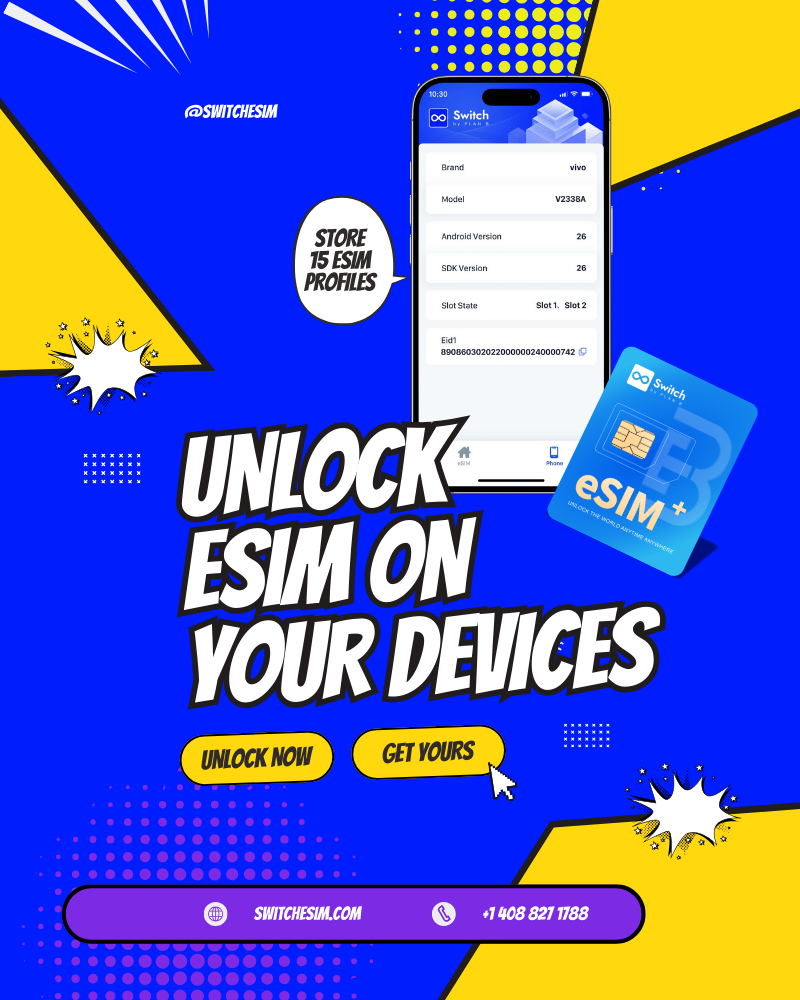
Instead of swapping physical SIM cards whenever you change plans, configure Switch Max with the required eSIM profile and use the card in a compatible iPhone. This guide explains how to switch eSIM on iPhone through that adapter workflow in 2026, while keeping card management separate from Apple's native eSIM settings.
- Switch Max is the Switchesim eSIM adapter choice for compatible iPhones with a physical SIM slot.
- Manage adapter profiles through the Switch Android app; native iPhone eSIM settings are a separate workflow.
- The Bluetooth reader loads profiles without an Android phone; confirm its setup requirements before choosing that route.
- Check the iPhone's regional variant, carrier lock and provider activation requirements before loading a profile.
Why this matters
Switchesim's Switch Max eSIM adapter is best for iPhone users who need adapter-based profiles and have a compatible physical SIM slot. It does not add a SIM tray to an eSIM-only iPhone or remove a carrier lock.
There are two different tasks: choosing the profile held on the adapter, and choosing which iPhone line supplies mobile data. Apple's native eSIM controls do not automatically manage profiles stored on a removable adapter.
For a 2026 setup, confirm the hardware route first. A familiar iPhone model name is not enough: regional variants, operating system, network bands and provider requirements all affect device fit.
Before you start
- Check the iPhone: confirm a compatible physical SIM slot, the exact model and regional variant, and permission to use the intended carrier. Open Settings, then General, then About to inspect Carrier Lock. No SIM restrictions indicates an unlocked iPhone.
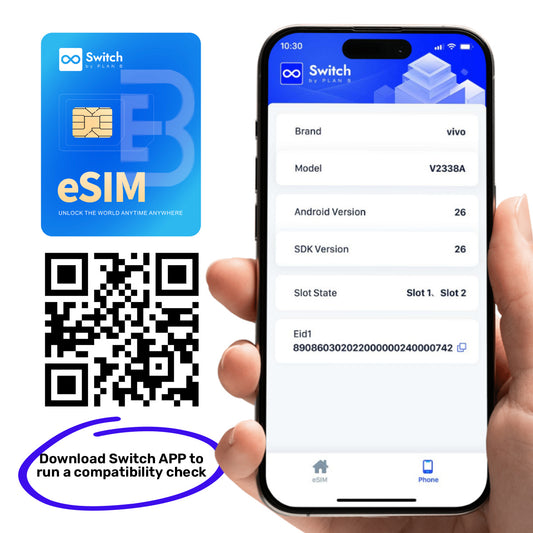
- Prepare the management route: have Switch Max and access to a compatible Android phone with the Switch Android app, or the Bluetooth reader with its documented provisioning setup. Switch describes Android-based profile management and reader-based loading without an Android phone.
- Prepare the provider details: obtain the provider's supported activation method, installation instructions and network settings. The gotcha is reuse: an activation code is not a reusable backup unless the provider explicitly permits another download.
Keep an internet connection available during provisioning. Also keep access to the account that issued the profile; a failed installation can require help from that provider rather than an iPhone setting change.
Hardware and management route
Choose the route before opening an activation code. Switch Max is the iPhone-use card in this workflow; the Bluetooth reader is a provisioning accessory, not a replacement for the card.
| Hardware | Best for | Stated capability | Limitation to check |
|---|---|---|---|
| Switch Max | Compatible iPhone users | Switch describes use of a configured Max card in compatible iPhones | Requires a compatible physical SIM slot; verify the specific iPhone and profile-management path |
| Switch Pro | Android-based profile management | Switch describes Android-based management for Pro | Do not infer Max's iPhone-management capabilities from a Pro bundle marked for iOS use |
| Bluetooth reader | Loading profiles without an Android phone | Switch describes an open-source reader that loads profiles | It is separate hardware; verify the supported provisioning software and host setup |
Choose Switch Max for the iPhone adapter workflow, not Switch Pro solely because a pre-loaded bundle mentions iOS. A card arriving with a working profile and a card offering your required ongoing management method are different buying decisions.
Before ordering, verify profile capacity against the exact card version. Stored-profile capacity, available memory and the profiles you can actively use are different limits. Do not treat a capacity figure for another adapter as a Switch Max specification.
The privacy check belongs here too. The reader's open-source designation describes software availability; it does not establish a no-logging policy, local-only processing or anonymous mobile service. Review the provisioning software's permissions and data handling separately from the carrier's identity requirements.
iPhone compatibility check
- Identify the exact iPhone model and regional variant in Settings, General, About. Check the device's specifications for a physical SIM tray rather than relying on the model family alone.
- Inspect Carrier Lock. If the phone is restricted, resolve the restriction with the carrier before trying a profile from another provider.
- Confirm Switch Max compatibility for that model and iOS version using the current product instructions. Physical fit alone does not establish management or network compatibility.
- Check the destination network and provider requirements. The iPhone must support the relevant network bands, and the provider must support the intended activation route.
Expected result: you have a compatible iPhone, an acceptable carrier-lock status and a provider whose installation requirements match your setup. Stop here if the phone lacks the required slot.
For a 2026 purchase, record the exact device variant when checking compatibility. This avoids confusing instructions for a SIM-tray model with instructions for an eSIM-only version.
Profile provisioning
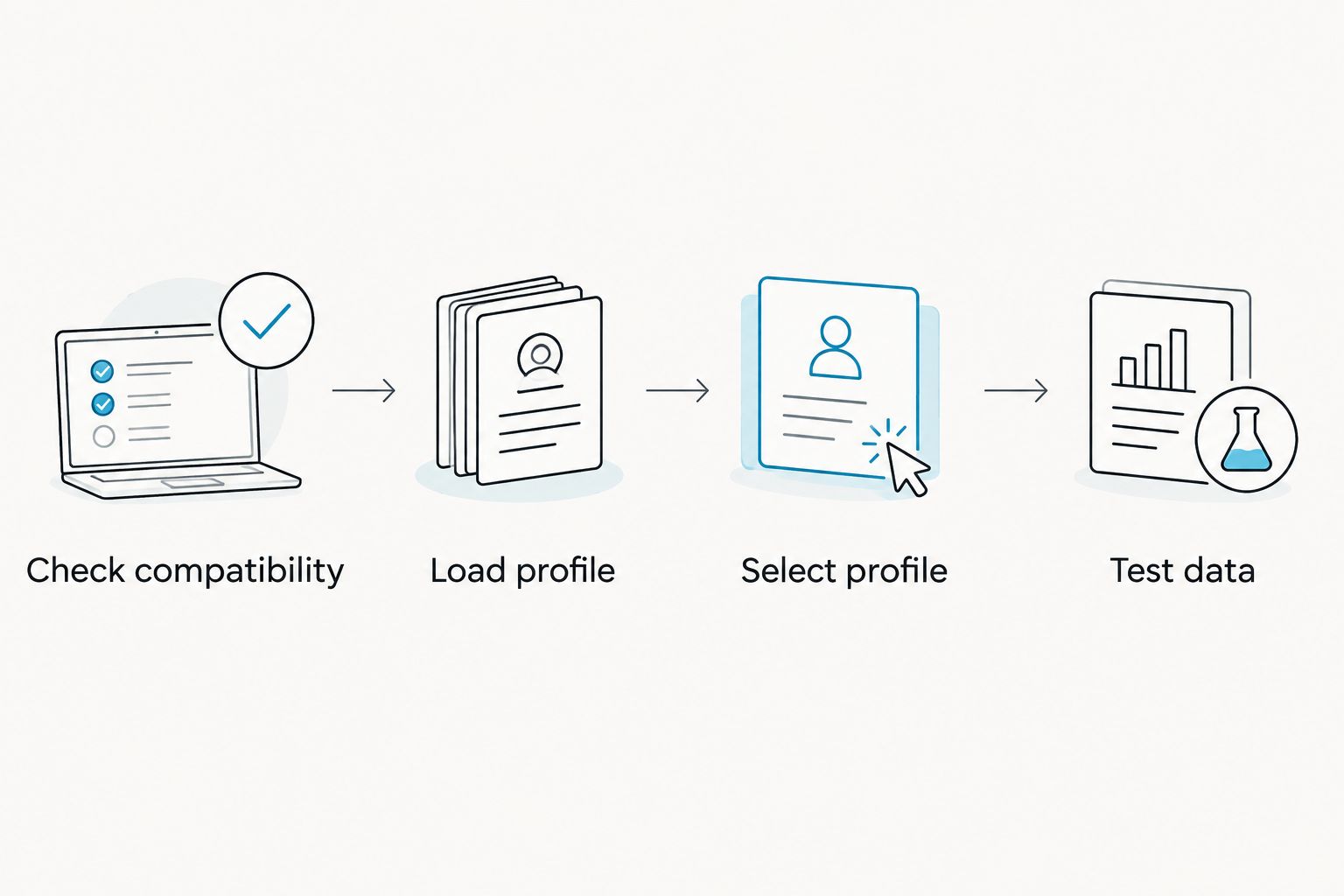
The Android route separates profile management from iPhone use. Configure the adapter through the supported management device, then move the configured card to the compatible iPhone.
- Obtain the provider's activation instructions. Confirm whether the provider supplies a QR code, manual activation details or another supported installation method.
- Insert Switch Max into the compatible Android management phone according to the card instructions. Open the Switch Android app and confirm that it recognizes the adapter before beginning installation.
- Follow the app's current instructions to load the profile. Use the provider's activation details exactly; do not substitute Apple's Add eSIM process for adapter provisioning.
- Use the supported Android management controls to select the intended profile. Follow the card documentation for any required completion or restart procedure before removing it.
- Confirm that the management app reports the intended profile and that provisioning has completed. Only then move the card to the iPhone.
Expected result: Switch Max holds the intended profile and is configured for the next iPhone-use step. A downloaded profile is not yet proof that the destination network will accept registration.
The app's profile-loading and selection labels belong to its current interface. Follow those controls as documented rather than looking for an assumed iPhone button called Switch Max.
iPhone line configuration
Use the iPhone to configure the mobile line after the adapter has been prepared. The paths below use English iOS labels; some regional settings use Mobile Data instead of Cellular.
- Install the configured Switch Max card in the iPhone's physical SIM tray, following the device and card handling instructions. Do not force a tray that does not close correctly.
- Open Settings, then Cellular. Confirm that the inserted card appears as a mobile line.
- If the iPhone has multiple lines, open Cellular Data and select the line associated with the adapter. This chooses the data line; it does not load a different profile onto the card.
- Open that line's settings and enable Data Roaming only when the provider instructs you to use it. Apply an APN only if the provider requires one and iOS exposes the relevant setting.
- Turn off Wi-Fi temporarily and open a webpage. Test the adapter's mobile-data connection separately from any existing iPhone line.
Expected result: the intended adapter line registers and supplies mobile data. A webpage opening over Wi-Fi is not evidence that the adapter profile works.
If you retain another line, check Default Voice Line separately. A data-only plan does not supply ordinary carrier voice calls or SMS just because mobile data works.
Switch to another adapter profile
To change profiles, repeat the supported card-management process rather than downloading the same activation code again. Switching a stored profile and installing a new profile are different operations.
- Identify the destination profile and confirm that its service is valid for the country and network you intend to use.
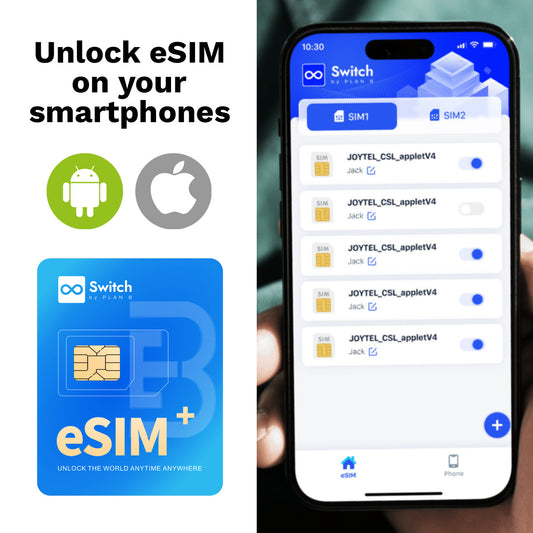
- Return Switch Max to the compatible Android management phone when using the Android route. Open the Switch Android app and select the intended stored profile through its documented controls.
- Complete the card's required switching procedure. Confirm the selected profile before moving the adapter back to the iPhone.
- Reinstall the card and check the iPhone's data-line selection. Apply the destination provider's roaming or APN instructions, then test with Wi-Fi off.
Expected result: the iPhone uses the newly selected adapter profile for the intended service. Do not expect separate entries for every stored adapter profile in Apple's native eSIM list.
For your 2026 workflow notes, record which profile serves each destination and which management route you used. Keep activation credentials out of shared notes.
Variant: provision with the Bluetooth reader
The Bluetooth reader provides a loading route without an Android phone. Switchesim describes it as an open-source provisioning accessory; it does not make the iPhone's physical-slot requirement disappear.
- Confirm that the reader's documented software and host requirements match your available device before buying it.
- Place the adapter in the reader according to its instructions. Establish the Bluetooth connection through the supported provisioning software.
- Load the provider profile using that software's documented activation process. Protect the QR code or manual activation credentials during the transfer.
- Confirm that provisioning completes before moving Switch Max to the iPhone. For profile selection, use only the controls explicitly supported by the reader and card documentation.
- Repeat the iPhone line-configuration and mobile-data test above.
Expected result: the adapter receives a profile without using an Android phone. Confirm loading and profile-selection support separately; the reader's stated loading capability is not evidence of every possible management feature.
This route suits buyers without access to an Android management phone. Its trade-off is another device and a separate provisioning setup to maintain.
Troubleshooting
The iPhone reports No SIM
Check card seating and tray fit first. Confirm the exact iPhone variant has a compatible physical SIM slot, then inspect the card and tray for damage. An absent card is a different problem from a recognized line that cannot register.
The line appears, but mobile data does not work
Verify that Cellular Data points to the adapter line. Then check the provider's service status, coverage, roaming instructions and APN requirements. Turn Wi-Fi off during the test so another connection cannot hide the failure.
The activation code fails during loading
Check the activation details and the management device's internet connection. Ask the provider whether the code has already been consumed or whether the download requires another authorization. Do not delete a working profile as a troubleshooting shortcut.
Switching Cellular Data does not change the adapter profile
That setting selects an iPhone data line, not a profile inside Switch Max. Return to the supported card-management route, select the intended profile, and then test the configured card in the iPhone.
A different provider is rejected
Inspect Carrier Lock and confirm provider compatibility. An adapter does not bypass carrier restrictions. If the phone is unlocked, investigate the profile's activation status and supported networks rather than repeatedly reinstalling it.
Customize your workflow
Build a repeatable pre-departure check: verify the destination profile, select it through the supported management route, and test the iPhone where that service can register. Keep a separate record of provider settings and support access.
Switchesim also offers pre-loaded destination-data cards. The supplied Max listings include China mainland, Japan and South Korea bundles with 10 GB or 20 GB over 30 days. Those figures describe the named plan bundles, not Switch Max's profile-storage capacity or a universal activation policy.
A pre-loaded card changes the initial loading task; it does not remove compatibility checks. Confirm the plan's activation conditions and the method for managing additional profiles before treating it as an ongoing switching solution.
For 2026 team deployments, bulk and white-label supply are separate purchasing routes. Define the target devices, provisioning method and support responsibilities before choosing either; retail iPhone setup instructions are not a fleet-management specification.
FAQ
How do I switch eSIM on iPhone using Switch Max?
Configure the intended profile on Switch Max through a supported management route, then use the card in a compatible iPhone with a physical SIM slot. Select the adapter line for mobile data in iPhone settings and test with Wi-Fi off.
Can I use Switch Max in an iPhone without a physical SIM tray?
No. This adapter workflow requires a compatible physical SIM slot; an eSIM-only iPhone needs a different installation route.
Does Add eSIM on iPhone load a profile onto Switch Max?
Apple's Add eSIM workflow is for native iPhone eSIM installation, not a substitute for Switch Max adapter provisioning. Use the supported Android management or Bluetooth reader loading route for the card.
Can I load Switch Max profiles without an Android phone?
Switch describes its Bluetooth reader as a way to load profiles without an Android phone. Confirm the reader's software, host requirements and supported card-management functions before choosing that setup.
Is Switch Max better than Switch Pro for this iPhone workflow?
Switch Max is the stated choice for extending adapter use to compatible iPhones. Switch Pro uses Android-based management; do not infer identical management capabilities from a pre-loaded Pro bundle labelled for iOS use.
Does Switch Max remove an iPhone carrier lock?
No. Check Carrier Lock in Settings, General, About, and resolve restrictions with the carrier before using another provider's profile.
How many eSIM profiles can I store on Switch Max?
Check the capacity specified for the exact Switch Max version before purchase. Stored-profile capacity and simultaneously usable service are different limits, and neither should be inferred from a data-plan allowance.
Should I delete my old profile before switching?
Do not delete a working profile merely to switch service. Select the intended stored profile through the supported management controls and confirm the provider's replacement-download policy before any deletion.
One last thing
Test the line you intend to use, not merely the phone's ability to get online. Disable Wi-Fi and verify the adapter is selected for mobile data; an existing native line can otherwise hide a failed adapter setup.
That final check separates successful provisioning from successful connectivity. Keep both in your setup routine.